
Documentation
Your desktop and your games, documented end to end.
Slipstream is a private host for low-latency desktop and game streaming. These guides take you from install to a work session or a couch stream on a LAN or a VPN you trust.
Android and Steam Deck clients · Optional Moonlight compatibility through GameStream · No Slipstream account or relay service
One host, one clear path
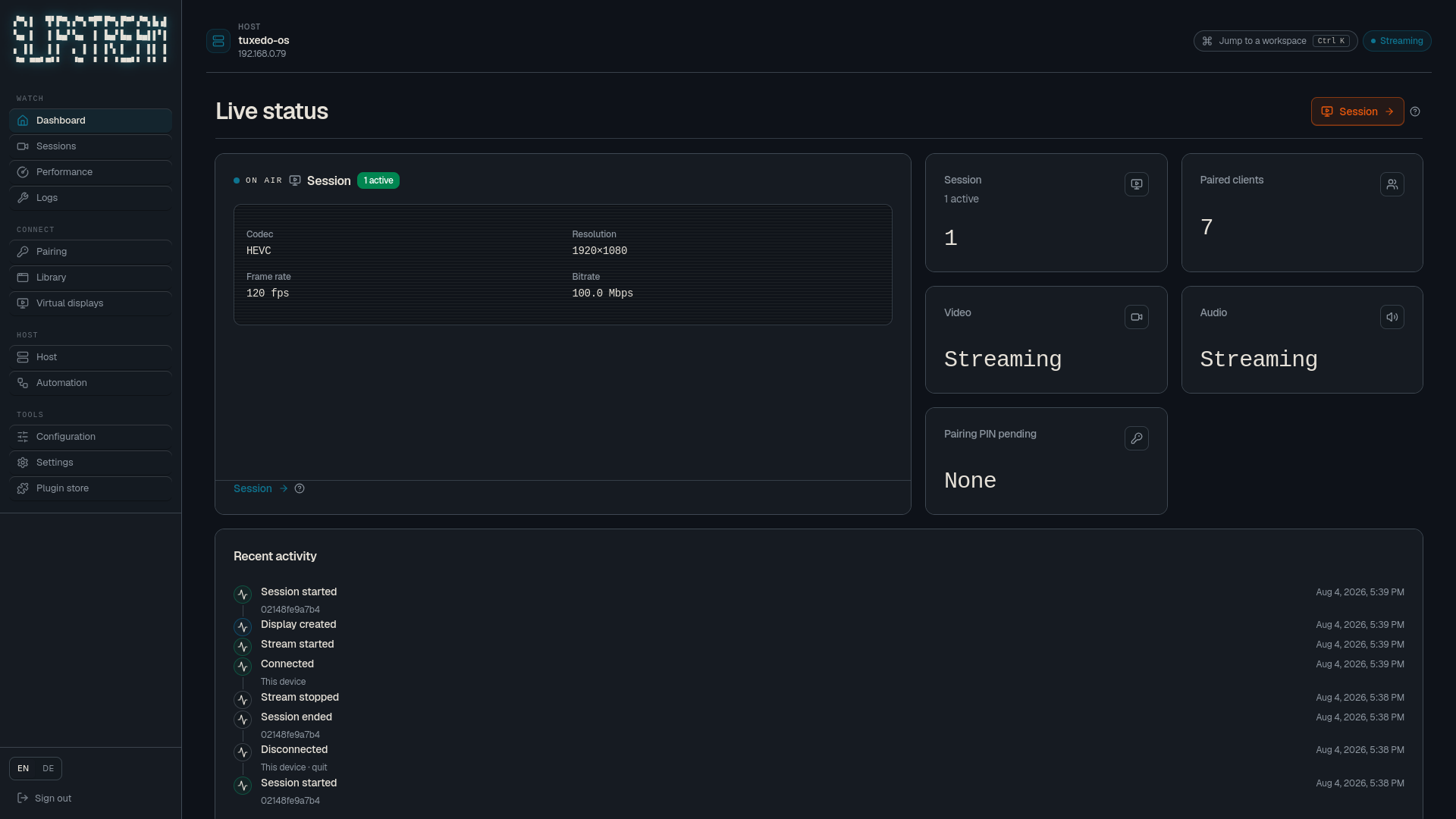
See the host before you connect.
The web console keeps pairing, displays, library, and live stream health in one place. The guides explain the decisions behind each control.
Play
Stream from Linux to the screens you use.
Run the host on Linux and connect from Android, Steam Deck, or a Moonlight client when you enable GameStream. Launch games from the library or settle into a desktop session.
Work
Your real desktop at the office
Reach the machine you left at home over a trusted VPN. Precise mouse control, clipboard sharing, Work profiles, and picture settings tuned for sharp text.
First stream
Three steps. Then pick Play or Work.
The shared path is short. Audience-specific tuning comes after the picture is up.
Guides
Everything else, by job.
Architecture, security, compatibility, the browser console, recovery, and the API.
How it works
Virtual displays, capture to decode, native vs GameStream, pairing and discovery.
Security
Trusted LAN or VPN only. Pairing is the boundary. Never port-forward.
Support matrix
Host desktops, GPUs, encoders, and client features - read from the code.
Web console
Pair devices, manage displays, library, plugins, and live host status.
Troubleshooting
Start from the symptom: discovery, black screen, input, stutter, Office / VPN.
API reference
Interactive OpenAPI for status, pairing, library, and host control.
Keep the host on a trusted network.
Slipstream is built for a LAN or a private VPN - including office laptop to home desktop. Pairing is the security boundary. Do not port-forward to the public internet.