
Installation & Quickstart
Install SolarFlare on your Linux host, configure permissions, and pair Moonlight streaming clients.
Overview#
SolarFlare is a low-latency self-hosted game-streaming server for Moonlight clients. It runs on Linux hosts with native KMS/Wayland capture, hardware-accelerated NVENC, VA-API, and Vulkan encoding, and fine-grained host tunables.
Automated Linux Installation#
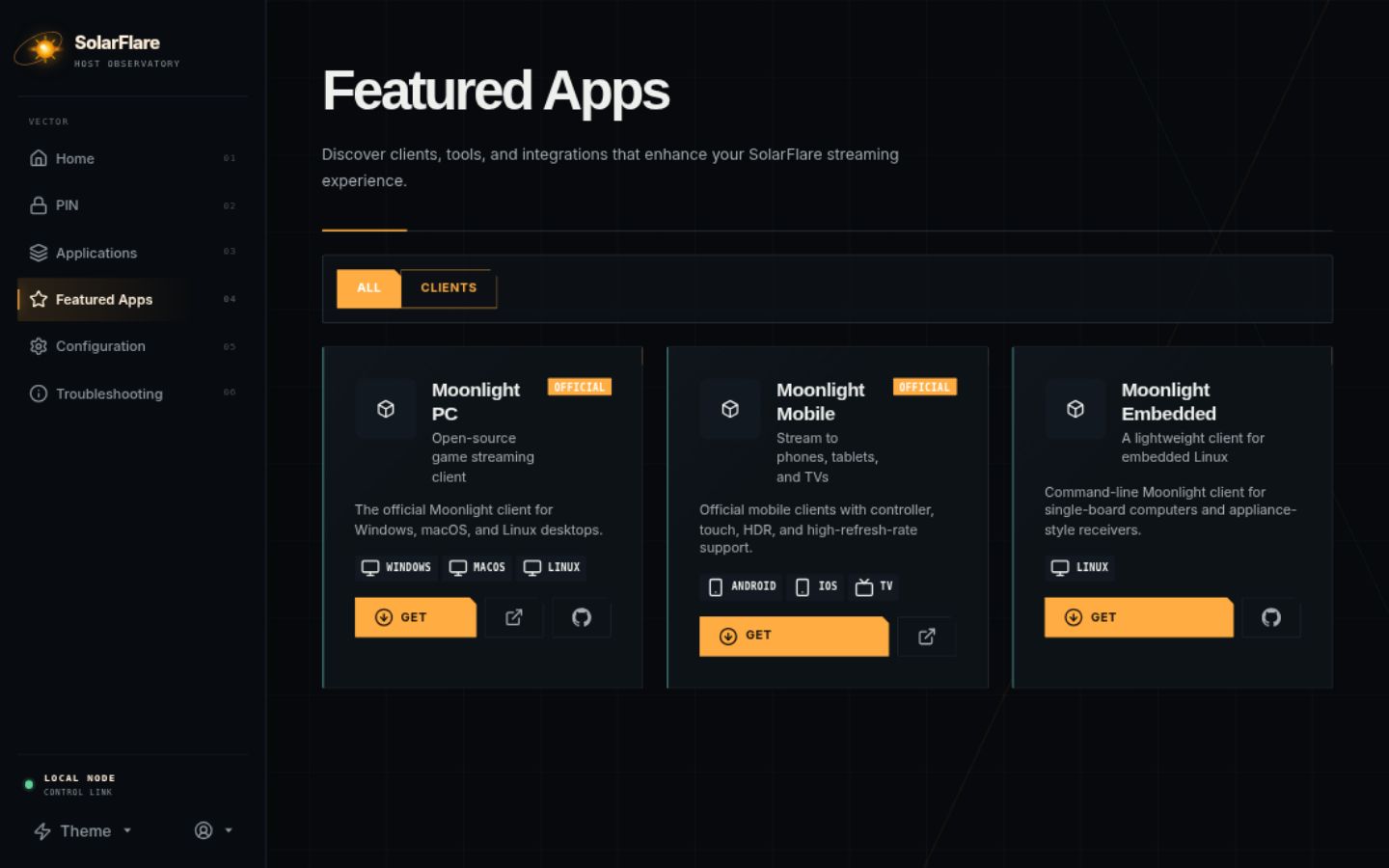
The maintained installation path on Linux is the installer script. It detects the distribution, installs packages, compiles SolarFlare, and sets up the systemd user service. Use the distro tabs for extra notes.
Tip
New hosts should always build with ./scripts/linux-install.sh. GitHub binaries are for updating an already working install.
git clone --recursive https://github.com/vindeckyy/Solar-Flare.git
cd Solar-Flare
./scripts/linux-install.sh
systemctl --user enable --now app-dev.lizardbyte.app.Sunshine.serviceUses pacman. GCC 14+ is typical. CachyOS can enable native CPU flags through the installer path. After install, confirm setcap on the sunshine binary.
pacman -Q gcc cmake ninja pipewire libdrmKMS & Real-Time Permissions#
For low-latency KMS capture and real-time capture thread scheduling (SCHED_RR), grant the necessary capabilities to the binary if installed manually:
sudo setcap 'cap_sys_admin,cap_sys_nice+p' /usr/local/bin/sunshineFirst Launch & Web UI Setup#
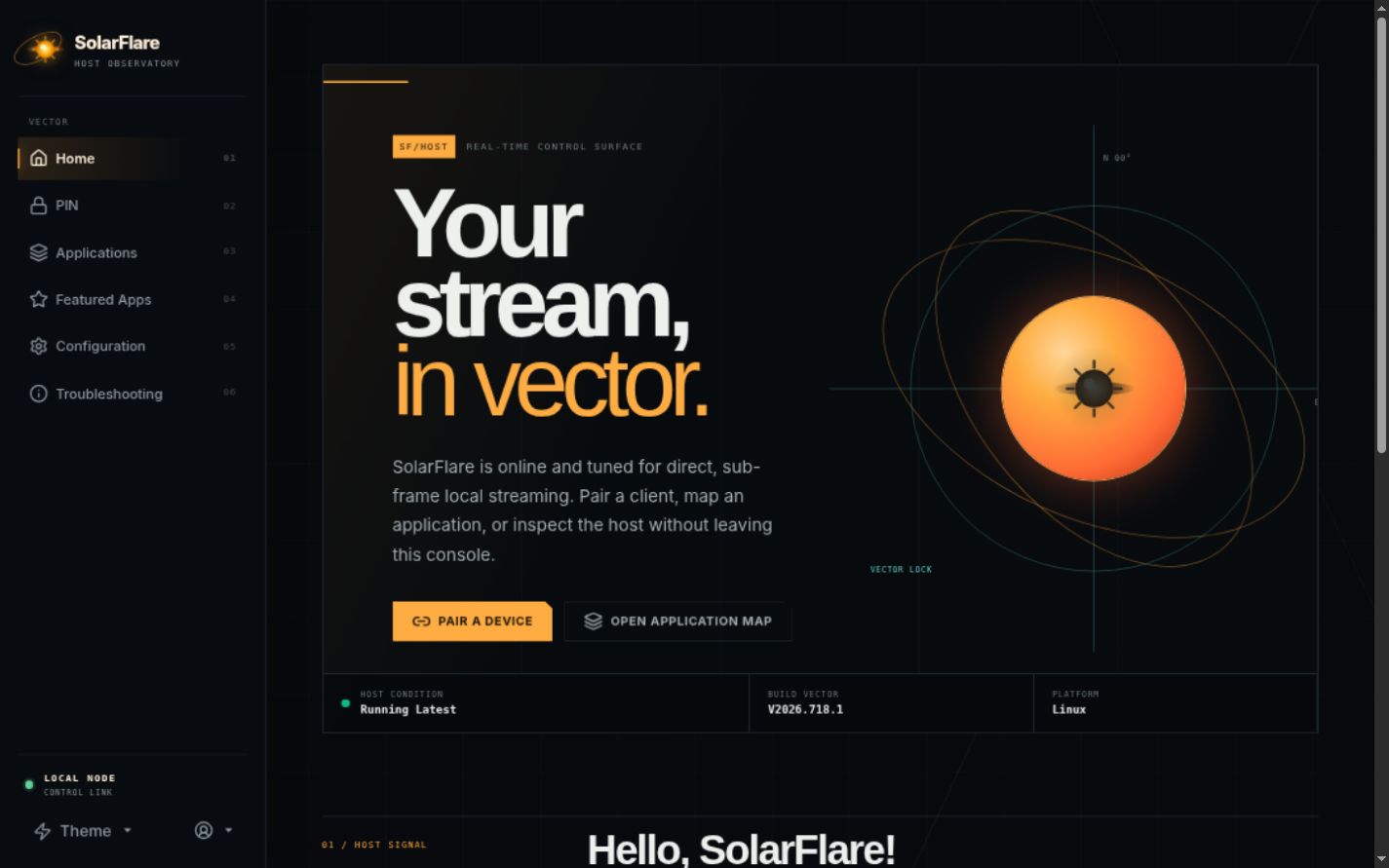
Start SolarFlare as a systemd user service or run it directly from your terminal. Open the Web UI configuration portal at https://localhost:47990 in your browser.
Important
On first launch, the Web UI prompts you to create an administrator username and password. Keep these credentials safe!
# Start and enable as a systemd user service
systemctl --user enable --now app-dev.lizardbyte.app.Sunshine.service

# View real-time logs
journalctl --user -u app-dev.lizardbyte.app.Sunshine.service -f
Pairing Moonlight Clients#
- Open the Moonlight client on your client device (PC, phone, tablet, Apple TV, Steam Deck).
- Select your host computer from the list or enter your host LAN IP address.
- Moonlight will display a 4-digit PIN.
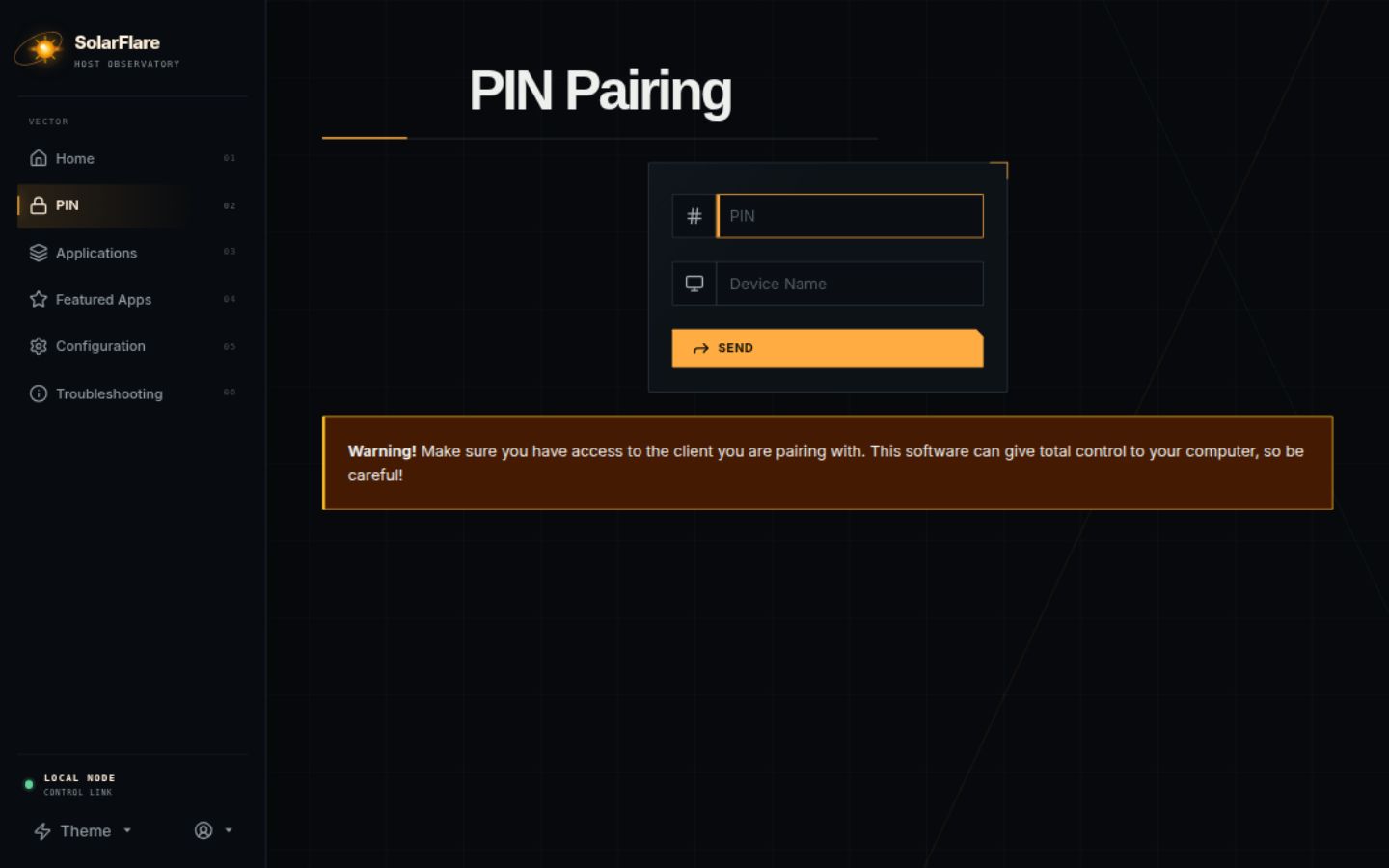
- Open the SolarFlare Web UI at https://localhost:47990/pin, enter the PIN, and click Pair.
Firewall & Network Ports#
Open the GameStream-compatible ports on the host firewall. The Web UI listens on TCP 47990. Video is typically UDP 47998.
sudo ufw allow 47984:47990/tcp
sudo ufw allow 48010/tcp
sudo ufw allow 47998:48000/udp| Port / Range | Protocol | Purpose |
|---|---|---|
| 47984-47990 | TCP | Control, RTSP, HTTPS Web UI (47990) |
| 48010 | TCP | Additional control |
| 47998-48000 | UDP | Video and audio stream |
Installer flags & what it does#
No flag = full install (deps, submodules, cmake configure, build, install, post-install services). --clean removes cmake-build-cachyos and reconfigures. --skip-deps (alias --no-pacman) skips the package manager and rebuilds only. --print-distro-id prints the canonical /etc/os-release ID and exits. -h prints help. The installer retries submodule clones, picks ccache and mold > lld > ld when available, configures Release with BUILD_DOCS=OFF BUILD_TESTS=OFF SUNSHINE_ENABLE_TRAY=OFF SUNSHINE_ENABLE_CUDA=OFF, builds with capped parallelism, then sudo cmake --install plus systemctl --user daemon-reload. npm install --no-audit --no-fund runs when node_modules/ is missing.
Per-distribution dependencies#
The installer detects the distro and installs the exact package set. Key notes per family:
GCC 14+ typical. Confirm capabilities after install.
sudo pacman -S --needed --noconfirm base-devel cmake ninja git openssl curl libpulse libdrm libva libx11 libxfixes libxrandr libxcb libxkbcommon libevdev opus libpipewire libportal wayland wayland-protocols systemd-libs libcap libnatpmp vulkan-headers shaderc glslang boost miniupnpc nlohmann-json libpng libxext libxtst nodejs npmVerify the install#
Run these five checks. Every one must pass before pairing:
systemctl --user --no-pager status app-dev.lizardbyte.app.Sunshine.service
getcap /usr/local/bin/sunshine
journalctl --user -u app-dev.lizardbyte.app.Sunshine.service -n 50 --no-pager
curl --insecure --output /dev/null --write-out '%{http_code}\n' https://localhost:47990/
sunshine --version 2>&1 | grep -m1 'Fork: SolarFlare'| Check | Expected |
|---|---|
| Service status | active (running) |
| getcap | cap_sys_admin,cap_sys_nice=p |
| curl before login | HTTP 401 (serving, auth required) |
| --version | Line containing Fork: SolarFlare |
Update & uninstall#
Preferred update: Web UI Update now on the outdated banner (open the chevron for the command log). It downloads solarflare-linux-x86_64.tar.gz, verifies SHA256SUMS, installs binary + assets, and restarts; an active stream blocks apply until idle. Manual binary-only fallback stops the service, curls sunshine-x86_64 over /usr/local/bin/sunshine, chmods 0755, re-applies setcap, and restarts. Raw GitHub executables cannot retain Linux capabilities — always re-run setcap after a manual download. Uninstall: disable the user service, remove the binary (/usr/local/bin/sunshine or ~/.local/bin/sunshine on NixOS) and the update helper + polkit file (back up ~/.config/sunshine/ first), then run the redesign uninstaller and Hermes-KMS uninstaller if those were installed. Note --clean only nukes cmake-build-cachyos, not installed files.
Pairing details & auto-pairing#
If the host never appears, add it by LAN IP: mDNS needs one broadcast domain with no AP isolation. Moonlight shows a 4-digit PIN; enter it with a device name at https://<host>:47990/pin (same as POST /api/pin with pin 0000-9999 plus name). Keep host and client clocks within ~30 s or pairing fails. trusted_subnet_auto_pairing with trusted_subnets (for example 192.168.1.0/24) skips the PIN for matching CIDRs — only on fully-controlled networks, since broad ranges silently pair strangers and bad CIDRs can lock out your LAN. Unpair from the clients list or via POST /api/clients/unpair and /api/clients/unpair-all; pairing certificates live under ~/.config/sunshine/.